Send data that is not from a device
Create a stream with your own field names, post events to it, and chart them next to your devices.
A stream accepts data that does not come from one piece of equipment. A manual entry, a batch import, or a reading from a system Logable does not connect to directly.
- Open Streams. Only a member, an admin or an owner sees this page.
- Select Create Stream.
- Basics: give the stream a Name, such as Raw Meal Silo Batching. Description and Category are optional.
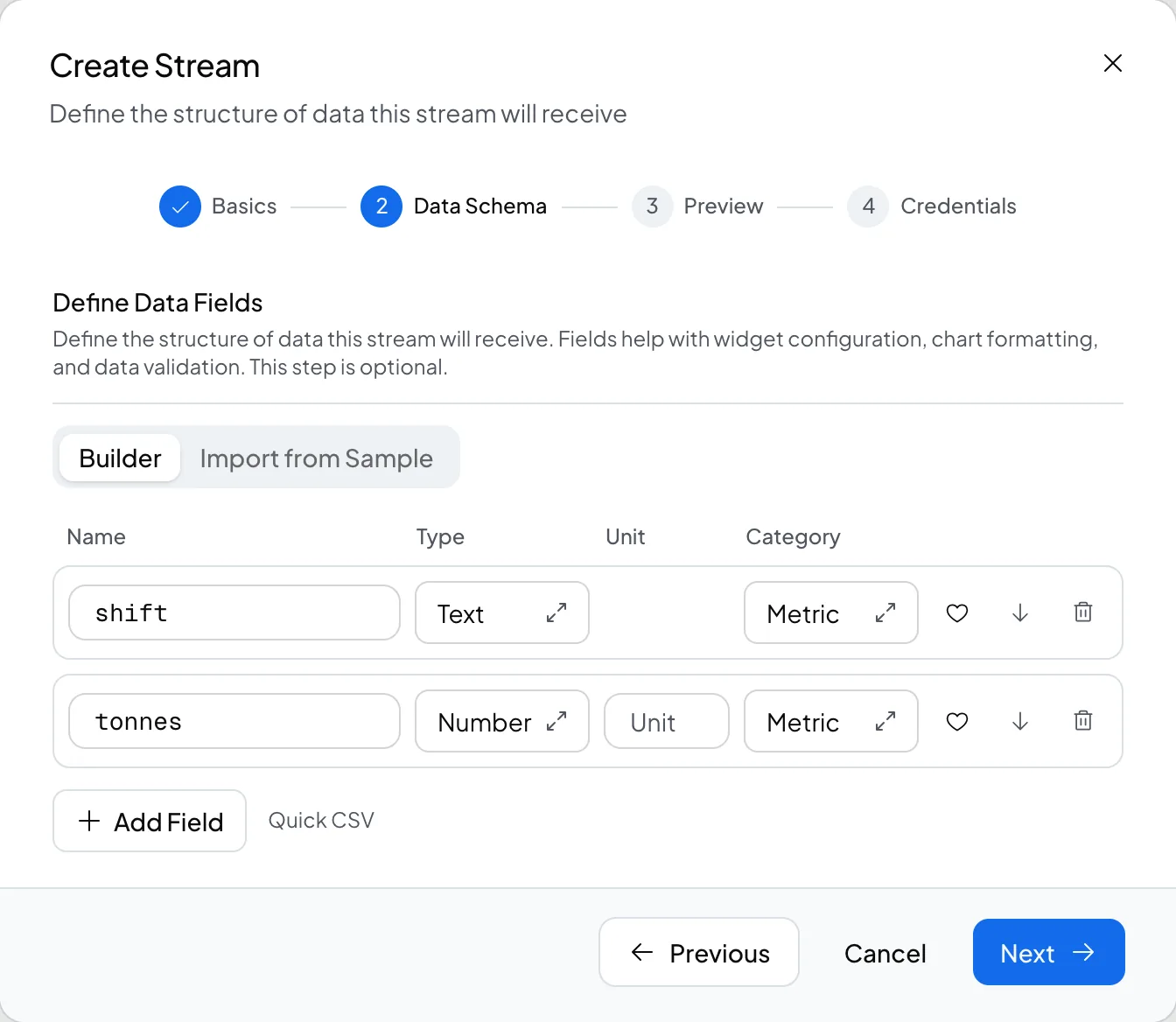
- Data Schema: add fields one at a time with Add Field, or switch to Import from Sample and paste a sample JSON payload. Logable reads the keys and infers a field for each one.
- Preview: check the sample data matches the schema you built.
- Credentials: Logable shows the Stream ID and the Stream Token. The token is shown once. Copy it now.
Send an event#
Post events to the stream with its own token, in the same shape as a device reading. See Send stream events for the full reference.
curl -X POST https://ingest.logable.app/streams/<STREAM_ID>/ingest \
  -H "Authorization: Bearer <STREAM_TOKEN>" \
  -H "Content-Type: application/json" \
  -d '{"data": {"units_produced": 420}}'
Chart it#
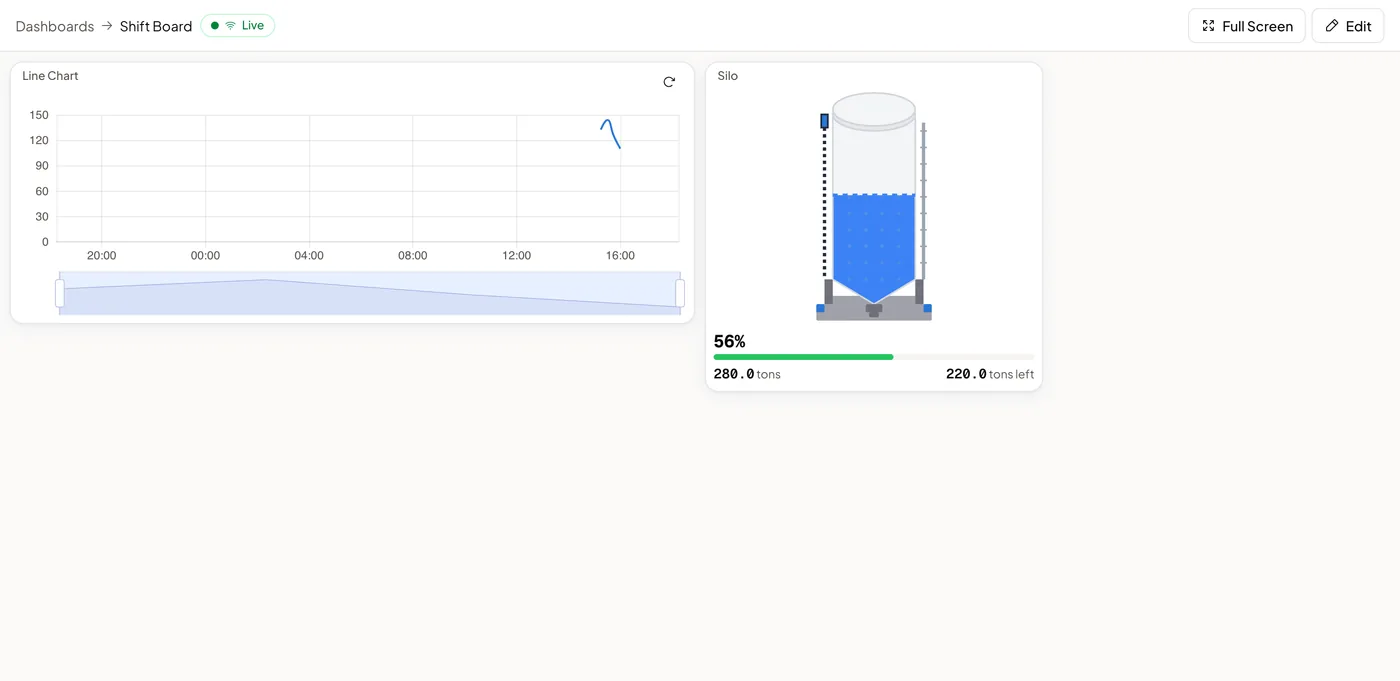
Add a widget to a dashboard and select Configure. Set Data Source to stream, pick the stream, then pick its Fields. Line, Area, Bar, Pie, Radar, Data Table and Stat widgets all accept a stream. A gauge and the equipment visuals do not, since they need a device.
Alert on it#
Open the stream's Triggers tab and create a rule. Choose the Data Received condition. It fires when a new event arrives, whether or not the value has changed.