Connect a device
Add the device in the app, copy its token once, and send the first reading over HTTP or MQTT.
A device is one piece of equipment that sends readings to Logable, such as a silo or a belt scale. Connecting one takes four steps in the app, then one request from the device itself.
- Open Devices and select Add Device.
- Step 1, Device Type: search for the device type that matches your equipment, or select "Show all types" to browse every type.
- Step 2, Details: give the device a name your team will recognise, such as Raw Meal Silo. Add a Location and a Serial Number if you have them. Turn on Enable status tracking so Logable flags a device that stops reporting.
- Step 3, Configuration: this depends on the device type. A silo asks for a capacity and a weight unit. Configuration tells Logable how to read values. It is not sent with a reading.
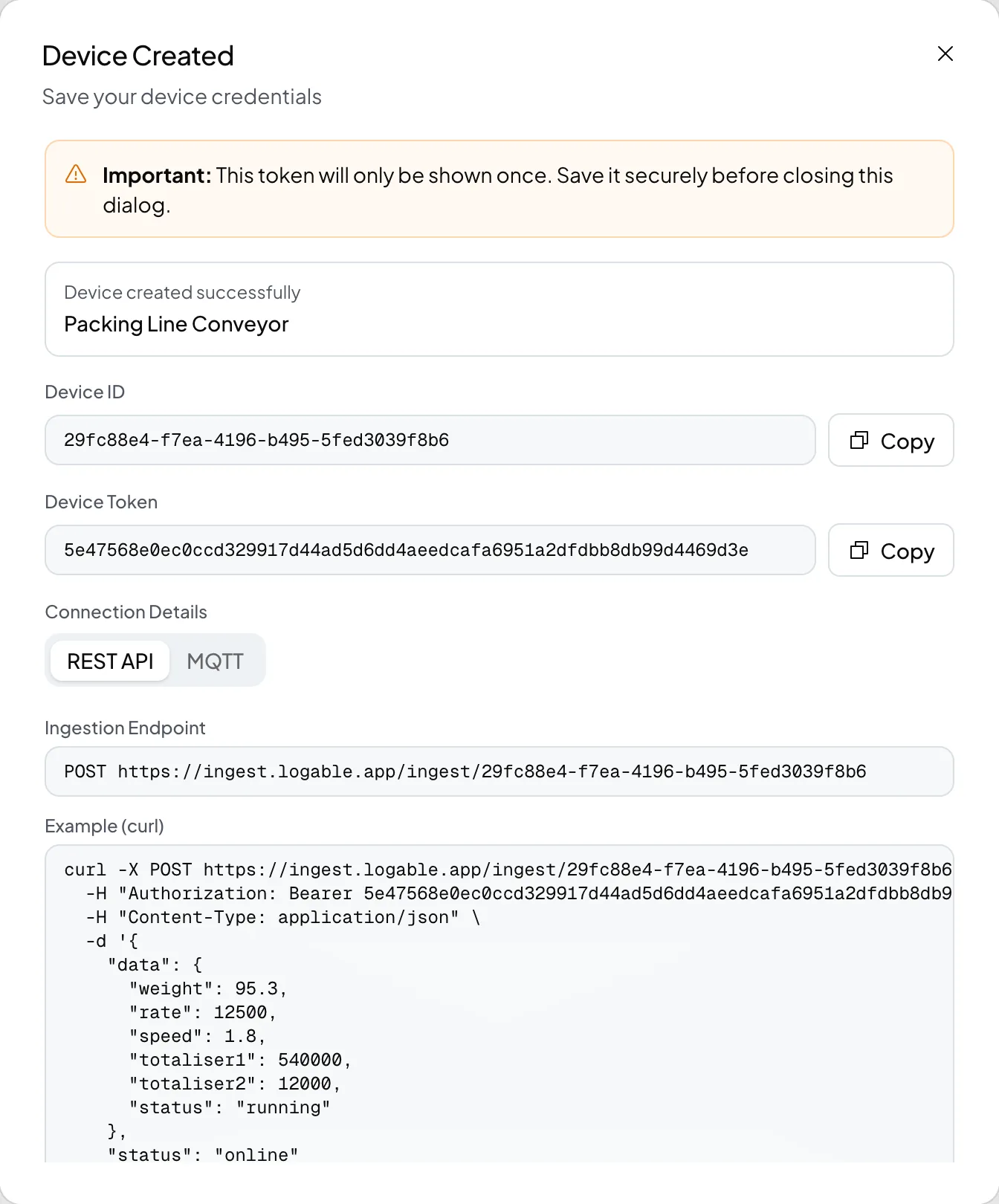
- Step 4, Credentials: Logable shows the Device ID and the Device Token. The token is shown once. Copy it now. The REST API and MQTT tabs below give the exact host, port and topic for this device. Select Download Credentials to save everything as a file, then select Done.
Send a reading#
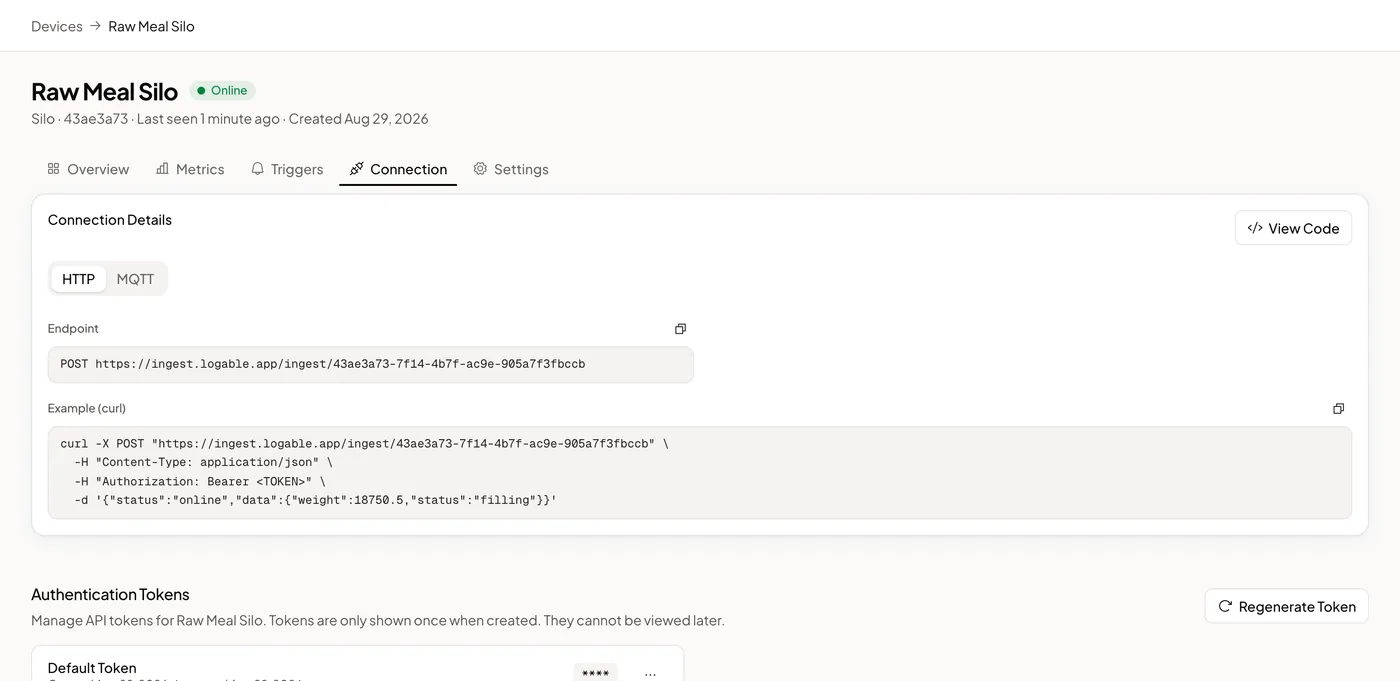
Nothing appears on a dashboard until the device sends a value. Follow Send your first reading to post one from a laptop. See Send readings over HTTP or Publish readings over MQTT for the full reference.
Check it arrived#
Open the device's Overview tab. The reading appears without a refresh.
If nothing appears, open the Connection tab and use the Device log. It shows what the device sends, what was accepted, and what was rejected and why, as it happens.