Rotate or revoke a device token
Replace a token without the device dropping off, or cut it off at once.
A device token is the device's password. Rotate it on a schedule, or revoke it at once if it leaks.
- Open the device's page and select the Connection tab.
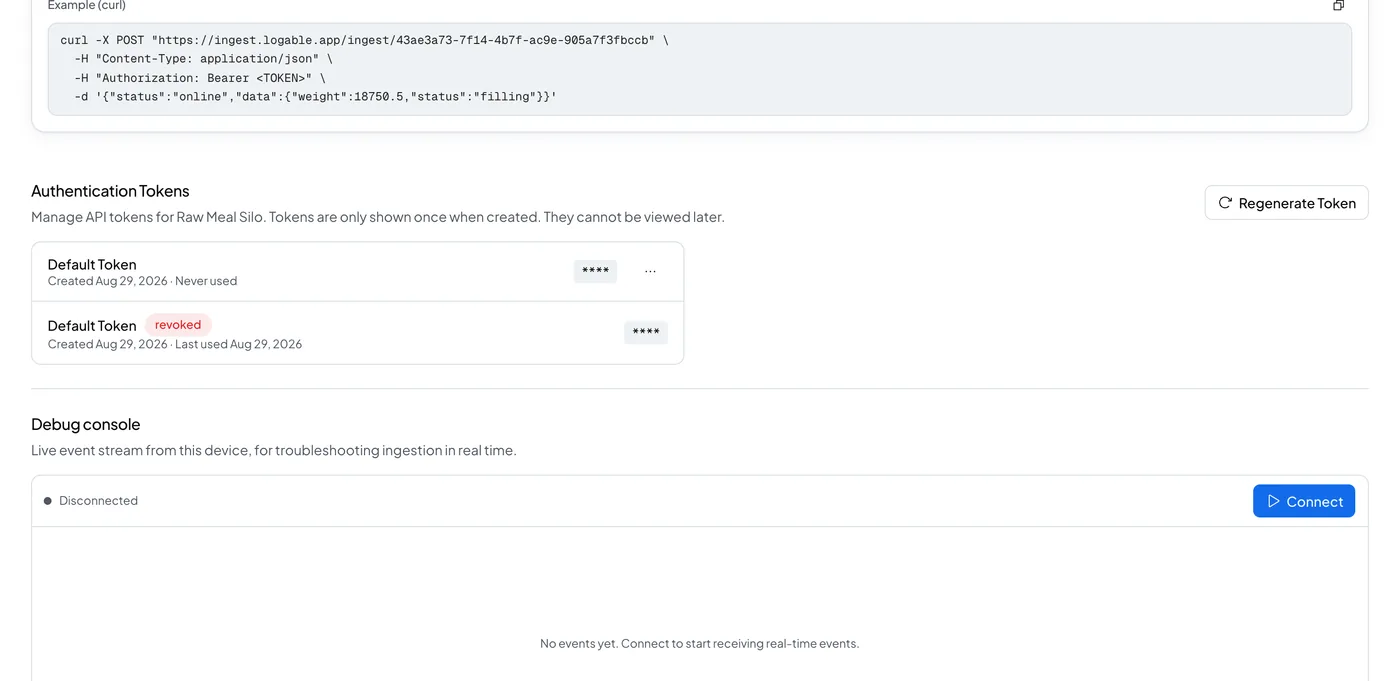
- Find Authentication Tokens.
- Select Regenerate Token. Give it an optional Token Name so you can tell tokens apart later, then select Regenerate to confirm.
- The New Token Generated dialog shows the new token. Select Download Credentials, or copy the token. It will not be shown again.
- Update the device with the new token.
The confirm screen says every active token is revoked. In practice, the old token keeps working for 24 hours after you regenerate, so a device out in the field does not drop off while you update it. The app does not show a countdown for this grace period, but it holds.
To cut a token off at once, with no grace period, select Revoke on its row in the Authentication Tokens list. Do this if a token leaks. The device cannot send readings again until it has a new token.
Who can do this#
Rotating or revoking a device token needs the owner role.