Get started with Logable
Create your organization, connect your first device, and put it on a dashboard. About fifteen minutes from start to finish.
Logable watches your equipment and tells you before something goes wrong. This guide takes you from a new account to a live dashboard.
You need three things in order: an organization, a device, and a dashboard.
Create your organization#
Sign up at logable.app. Logable or your partner sets your organization up and invites you into it.
An organization holds your devices, your dashboards and your team. If you run more than one site, switch between them from the header.
Add your first device#
A device in Logable is one piece of equipment that reports readings. A silo, a conveyor, a weigh bin.
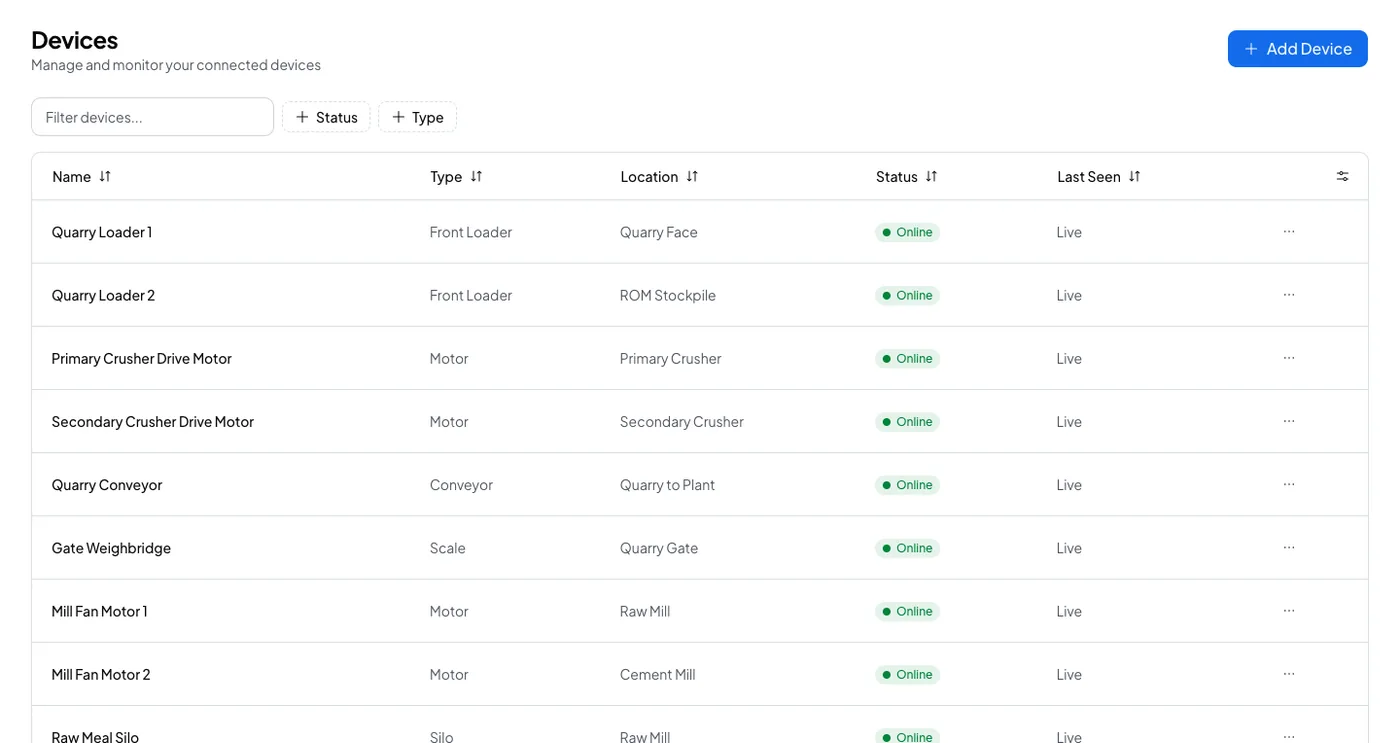
- Open Devices and select Add Device.
- Pick the Device Type that matches the equipment. The type decides which field names the device may send. See Device types if you are not sure which to pick.
- Give the device a name your team will recognise on a phone at night. "Raw Meal Silo" is better than "Silo 1".
- Fill in the configuration the type asks for. A silo needs a capacity and a weight unit. Configuration is not sent with a reading. It tells Logable how to read the values.
- Select Create Device.
Logable shows the device token once, on the screen after you create the device. Copy it now and store it where you keep credentials. The token is the device's password. Anyone holding it can send readings as that device.
Send your first reading#
Nothing appears on a dashboard until the device sends a value.
HTTP and MQTT both carry readings. Both accept the same body and both use the device token.
- Send readings over HTTP. One POST per reading. The fastest way to test from a laptop.
- Publish readings over MQTT. Suited to gateways and constrained hardware.
A PLC or a Modbus device reaches Logable through a gateway. The gateway reads the equipment and republishes each reading on the device's own topic, using the same contract every other device uses.
Open the device's Connection tab for a ready code sample with this device's real id and token filled in.
Put the device on a dashboard#
A dashboard is a screen of widgets. A widget shows one device, or one metric, in one shape.
- Open Dashboard and select Create dashboard. Logable opens a new dashboard in edit mode, named after the date and time.
- Rename it in the title field for what someone watches, not for the equipment. "Night shift" reads better than "Silos".
- In the Widget Library sidebar, pick a widget and a size to add it to the dashboard.
- Select Configure on the widget to choose the device and the metric. Each device type supports a different set of widgets. A silo has a silo visual; every type also supports charts, a gauge, a stat and a table.
- Select Save Configuration. Drag the widget to size it, then select Save.
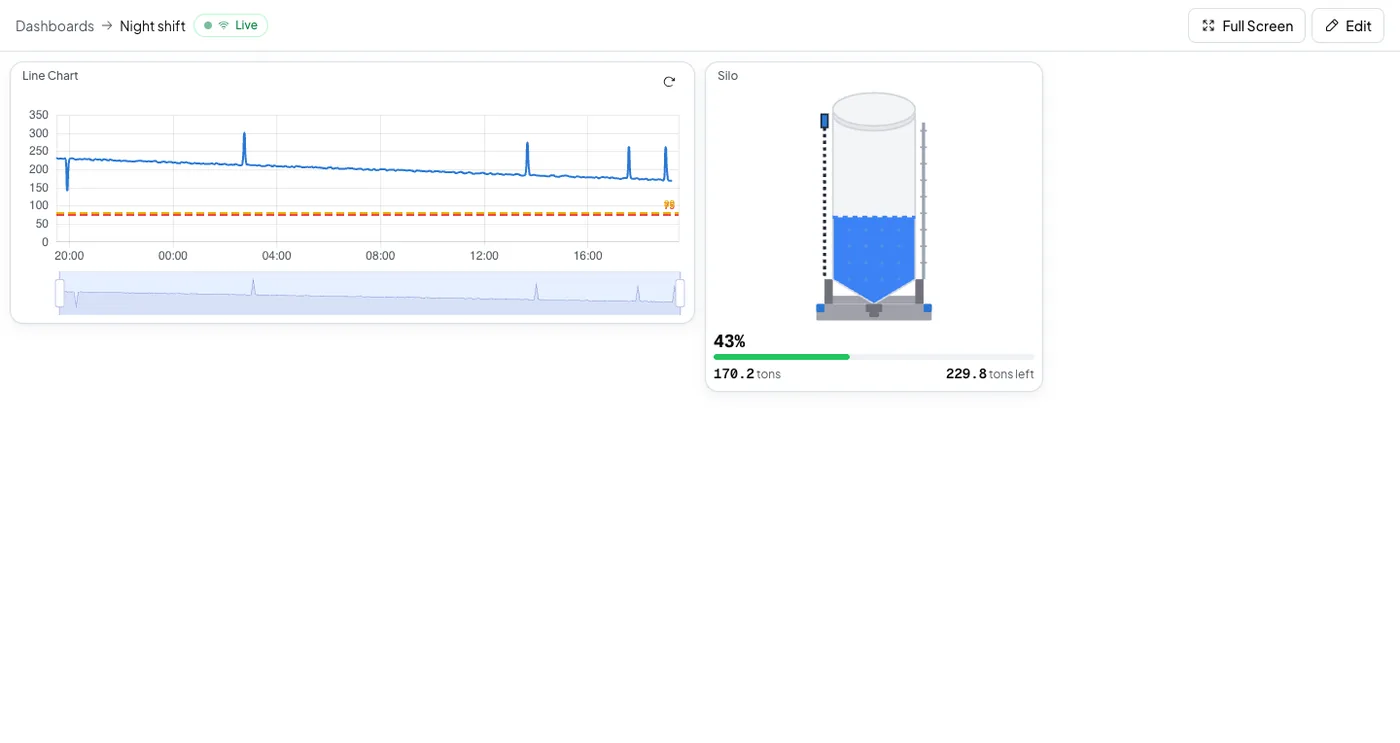
The dashboard updates as readings arrive. You do not need to refresh it.
What to do next#
Set an alert so Logable tells you before a limit is crossed, instead of you watching a screen. Open the device's Triggers tab and start from a ready-made preset for that device type.