Schedule a report and choose what it covers
A saved report keeps its filter as its scope. Schedule it daily, weekly or monthly to a list of people or roles.
A saved report always covers the same scope, and you can put it on a schedule so it sends on its own.
Scope#
A report's scope is the filter bar as it stood when you saved the report. A report has one scope. To cover something else, change the filter bar and save the report again.
Schedule#
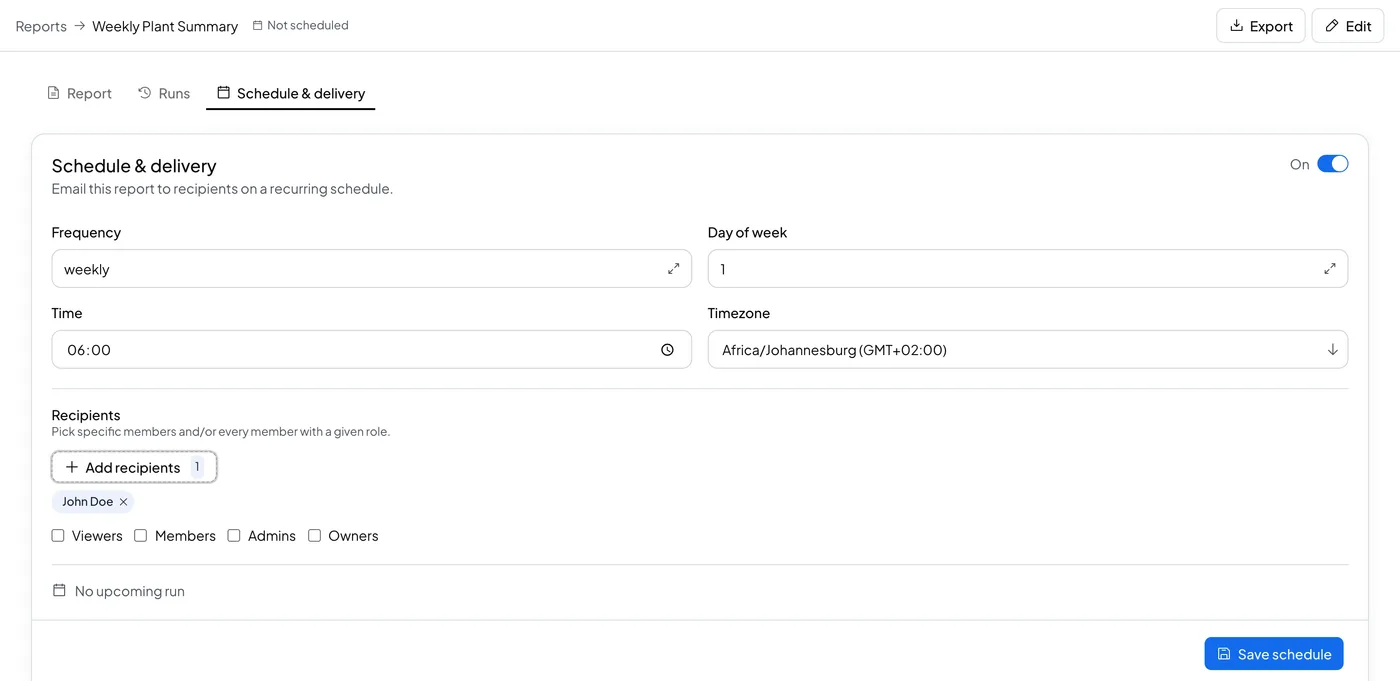
Open a saved report and select the Schedule & delivery tab.
- Turn on the schedule toggle.
- Set Frequency: Daily, Weekly, or Monthly. Weekly adds a Day of week field; Monthly adds a day of the month.
- Set the time and the Timezone the report runs in.
- Set Recipients: pick members, roles, or both.
- Select Save schedule.
Once a schedule is saved, Run now sends it right away and Send test to me checks the report looks right; both sit next to Save schedule. Pause stops a schedule without deleting it: it sits next to the next-run date, and turns into Resume while paused.
Runs#
The Runs tab keeps a copy of every report Logable has sent. Open a past run to see the exact snapshot that went out, even if the live data has since changed.
What needs the full tier#
Saving a report and scheduling it need the full Reports tier. Exploring the organization overview and exporting a report do not.