Monitor a water tank remotely
Put water tank level on a live dashboard, and alert before a tank runs dry, overflows, or drains faster than it should.
A water tank in Logable stores one reading: level, as a percentage of full. This guide covers the six steps from an empty account to an alert on a phone.
1. Add the tank as a device#
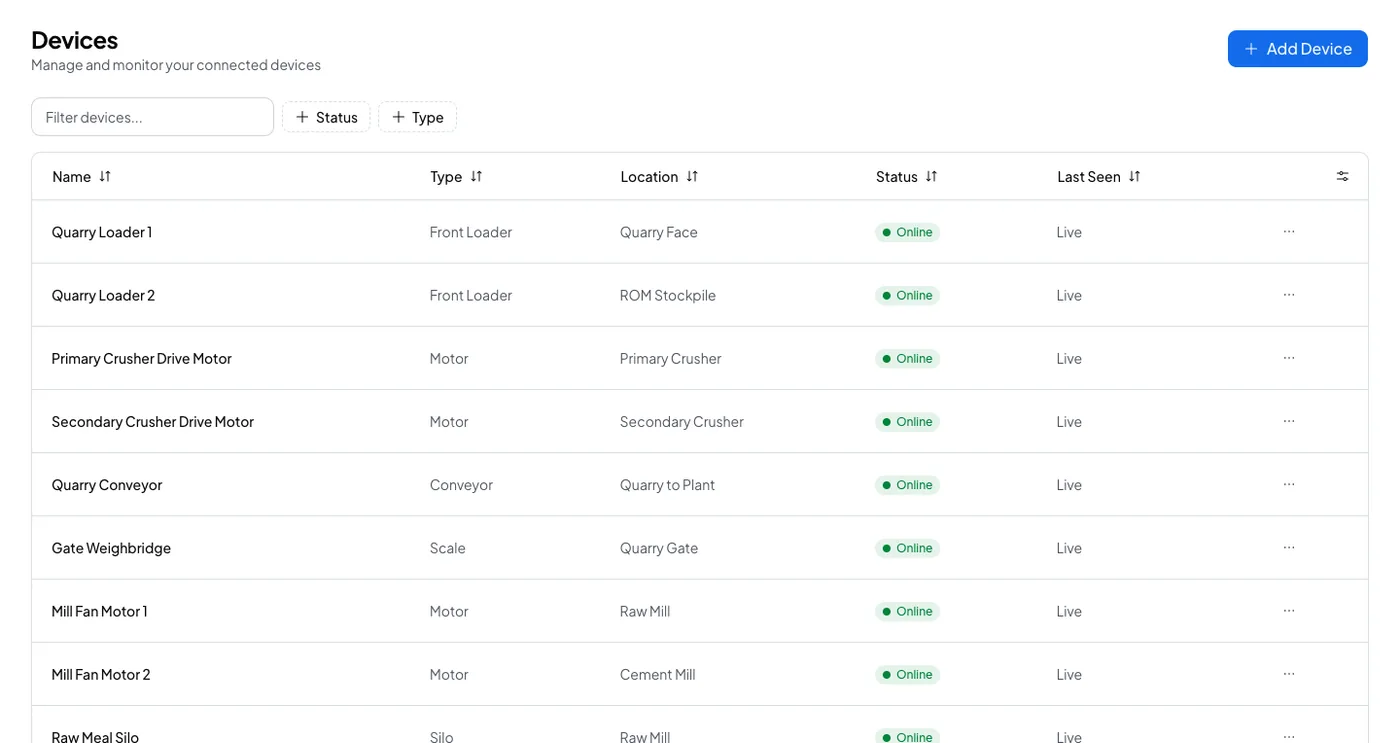
Open Devices, select Add Device, and pick the Water tank type. Name it after the asset, such as "Dust Suppression Tank".
The configuration is short:
- Capacity, the volume the tank holds when full.
- Capacity unit, litres or kilolitres.
Level itself is a percentage, so the tank presets need no threshold of their own.
2. Copy the credentials#
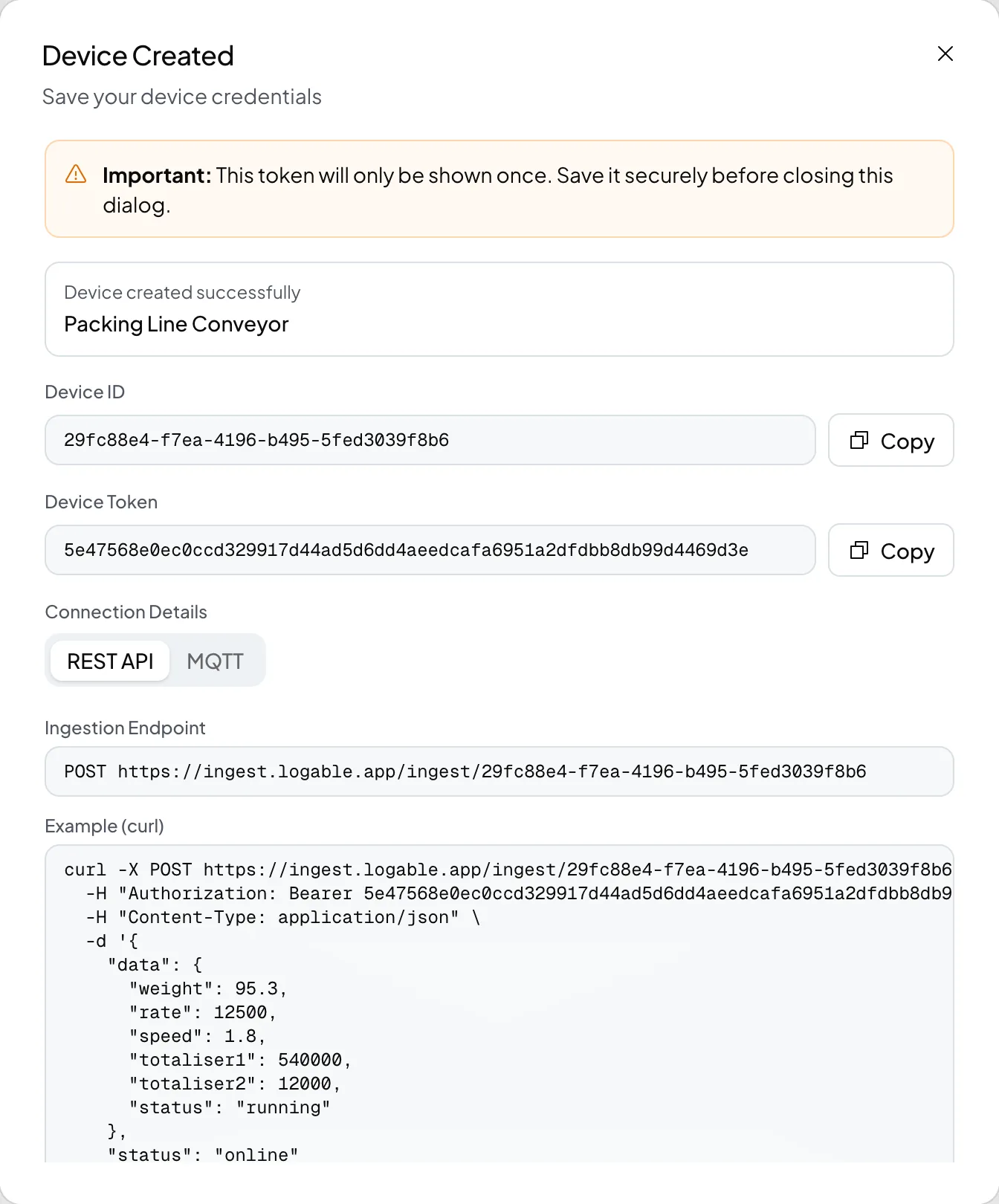
Step 4 shows the Device ID and the Device Token, once. Copy both into the gateway's MQTT client, or select Download Credentials.
3. Send the level#
A water tank sends one metric, level, as a percentage.
{
  "timestamp": "2026-09-12T08:30:00.000Z",
  "status": "online",
  "data": { "level": 62 }
}
Send a reading every minute. A tank moves slowly, and a minute is fast enough for the draining preset to see an hour of change.
An ultrasonic or a submersible pressure sensor gives a distance or a head, not a percentage. Convert it to a percentage of full before the reading reaches Logable, at the sensor's transmitter or in the gateway. That keeps one number on the platform, and every tank preset then reads the same thing.
4. Put it on a dashboard#
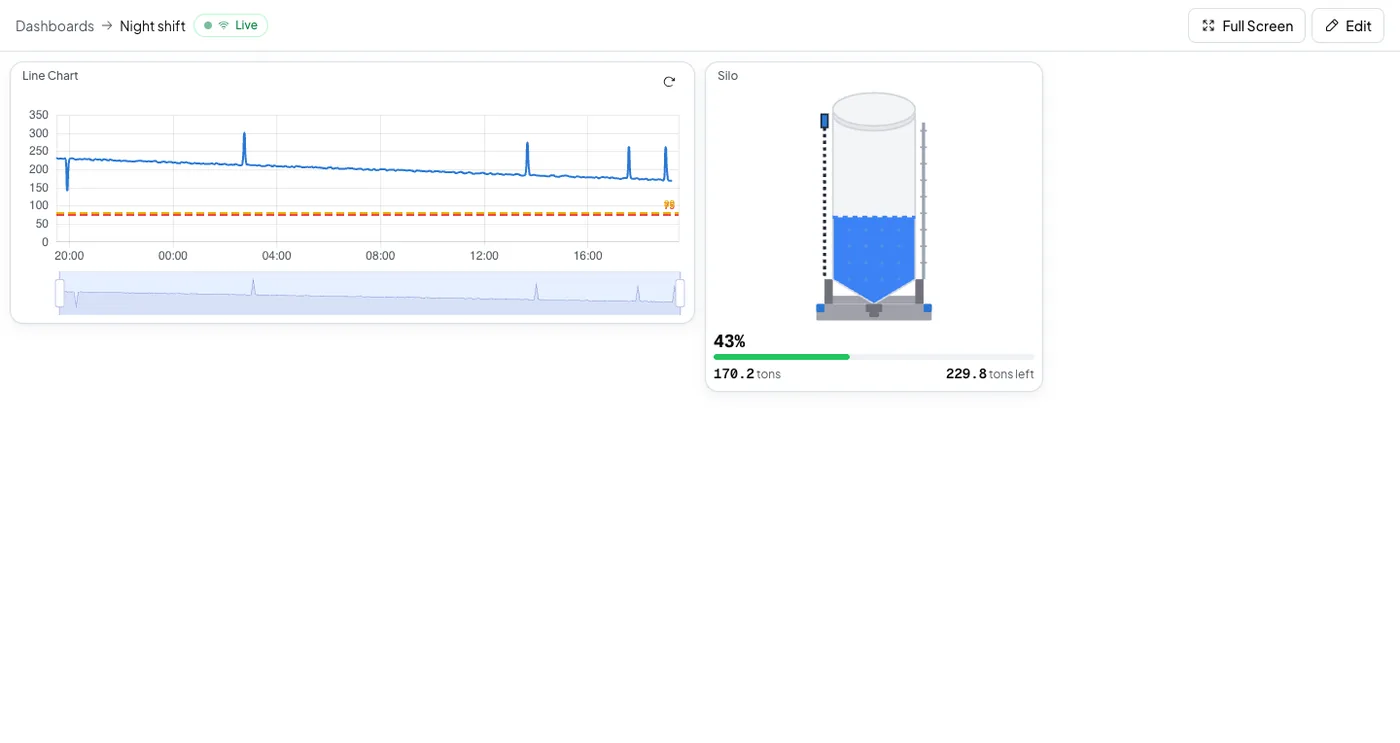
Open Dashboards, select Create dashboard, then Create from template, and choose Tank. It lays out the level widget and the history together.
5. Add the alerts#
Open the tank's Triggers tab and select Browse presets.
| Preset | Fires at | What you do |
|---|---|---|
| Running low | 20 percent full | Refill, or switch the source |
| Nearly full | 90 percent full | Stop the inflow before it overflows |
| Draining faster than normal | A fall of 15 percent within an hour | Check for a burst line or an open valve |
| Not reporting | Five minutes of silence, or three times the reporting interval when that is longer | Check the gateway and the power |
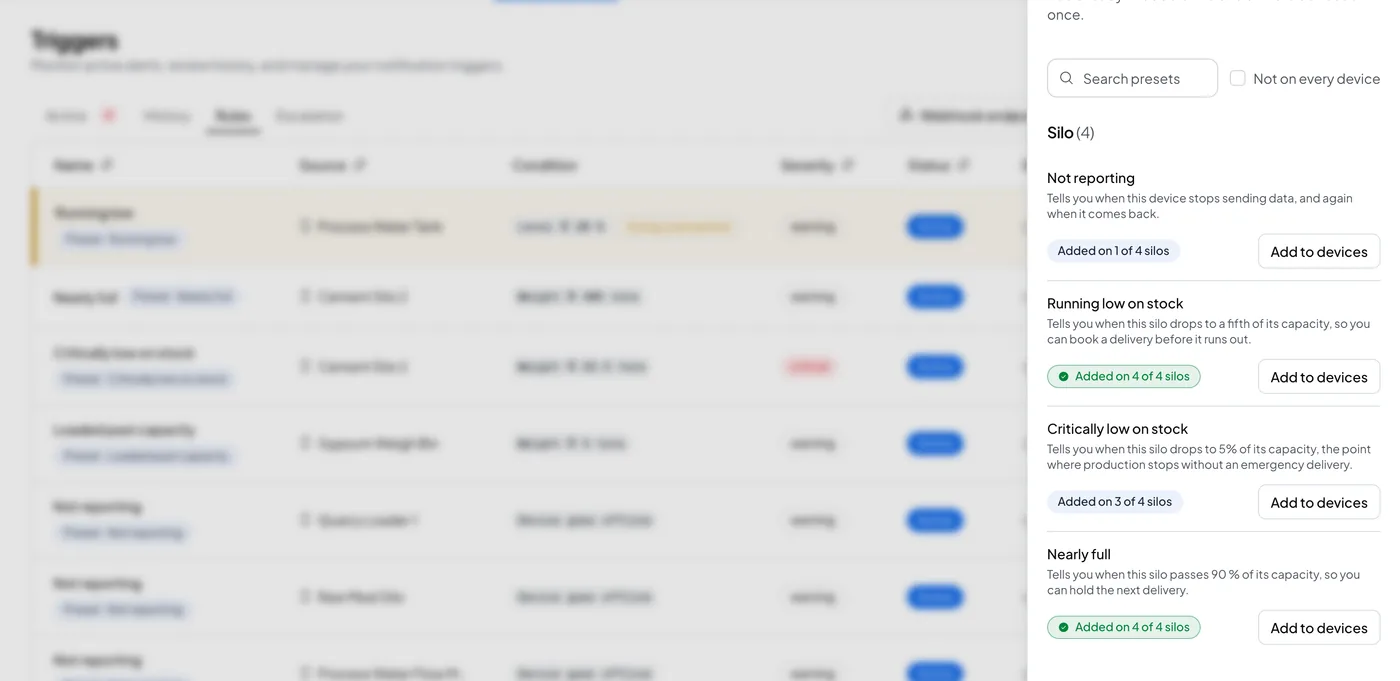
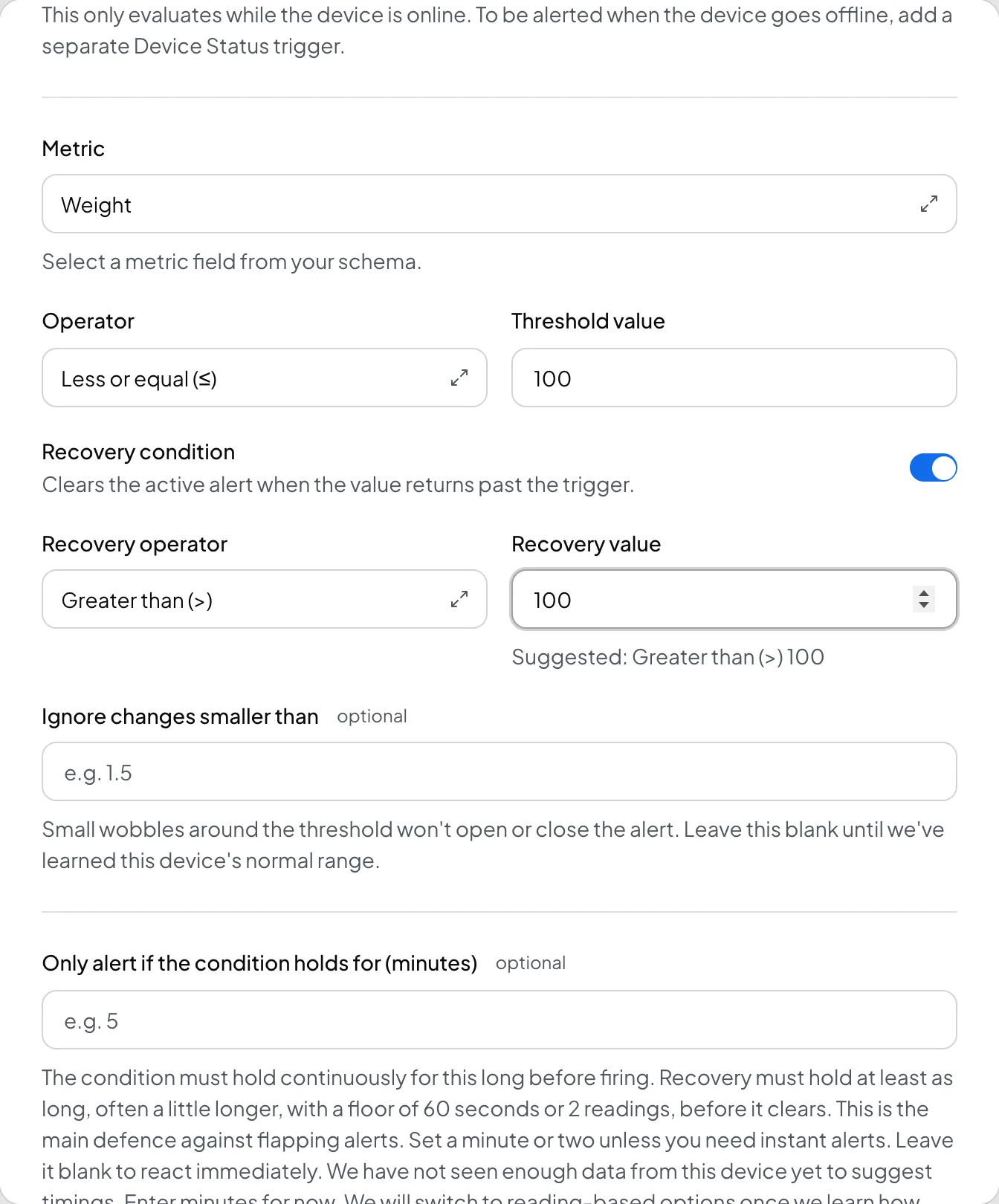
If a preset does not fit, select Create Trigger on the same tab instead. Set the metric, the operator, the threshold, and a recovery condition that clears the alert when the reading passes back over it.
6. Check it arrived#
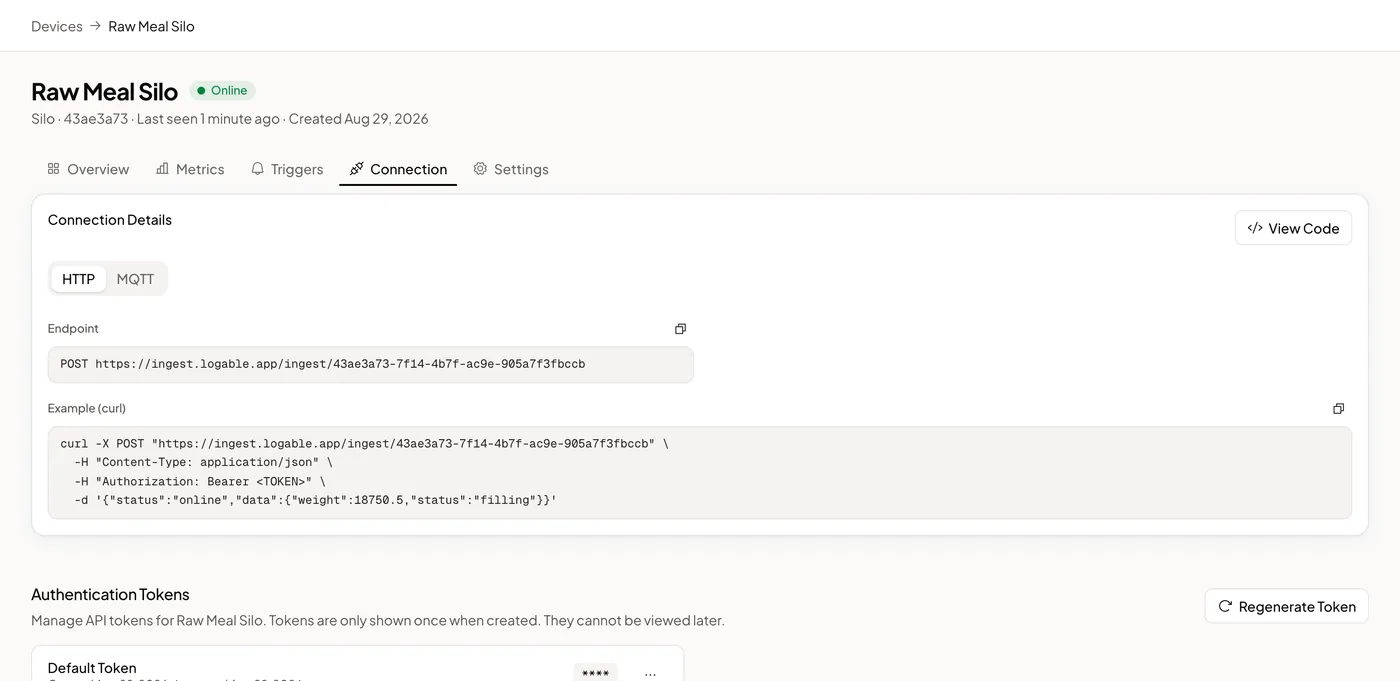
Open the tank's Connection tab and read the device log. A level sent as a string, a wrong topic or an expired token each show as a row with the reason and the fix.
Read next#
- Water tank monitoring, the whole picture.
- Water tank device type reference, every metric and configuration field.
- Monitor a pump remotely, the pump at the other end of the pipe.